
Canvas & previews
Open Canvas for rich previews: smart text formats, links, images, OCR, and touch-friendly mobile layout.
Canvas is ClipaX’s detail view for a single clipboard item. From the history list, click (desktop) or tap (mobile) any row to open Canvas on the right (desktop) or full screen (mobile). Use Canvas to read, compare formats, copy again, and edit metadata (tags, category, notes) without leaving the app.
Open Canvas
- Select an item in your history or search results.
- Canvas opens automatically on desktop split view; on mobile it becomes the main pane.
- Use the toolbar to copy, favorite, delete, or open related actions.
Figure 1 — Desktop: history list (left) and Canvas preview (right).
Content types
| Type | What you see | Notes |
|---|---|---|
| Plain / rich text | Tabs for Smart, Plain, and Rich (when HTML/RTF exists) | Rich tab is desktop-first |
| Links | URL, title, optional link preview card | Available on all plans |
| Images | Zoomable preview; on-image annotations; background OCR | Pro: view OCR text; advanced annotation (image editor) |
| Files | Path, icon, open-in-Finder/Explorer actions | Pro unlocks the detailed properties preview panel |
Smart preview (text)
For text clips, ClipaX detects structure and renders an in-app preview—no external editor required.
Supported Smart modes include:
- JSON — formatted tree / syntax view
- Markdown — rendered headings, lists, code blocks
- Source code — language-aware highlighting when detected
- Colors — swatch from hex / rgb values
- LaTeX — rendered math when the snippet is valid
On the Free plan, Smart preview may be limited for some content types; upgrade to Pro to unlock all Smart modes for that clip. The canvas toolbar shows Unlock Smart Preview when applicable.
JSON example
Copy a JSON API response, open Canvas, and choose the Smart tab:
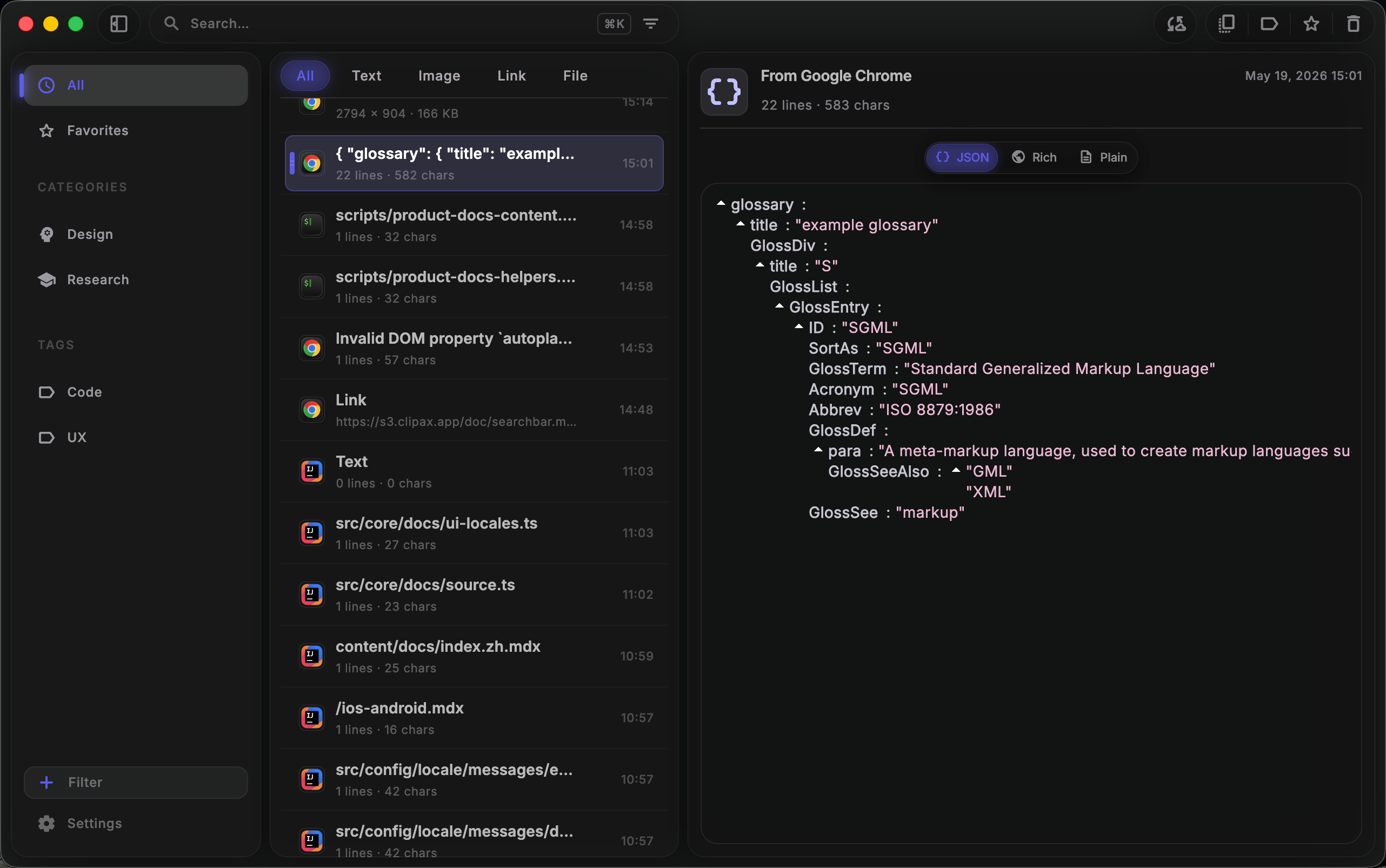
Figure 2 — Smart preview: JSON with syntax highlighting (desktop).
Markdown example
Copy a README fragment or note with Markdown syntax:
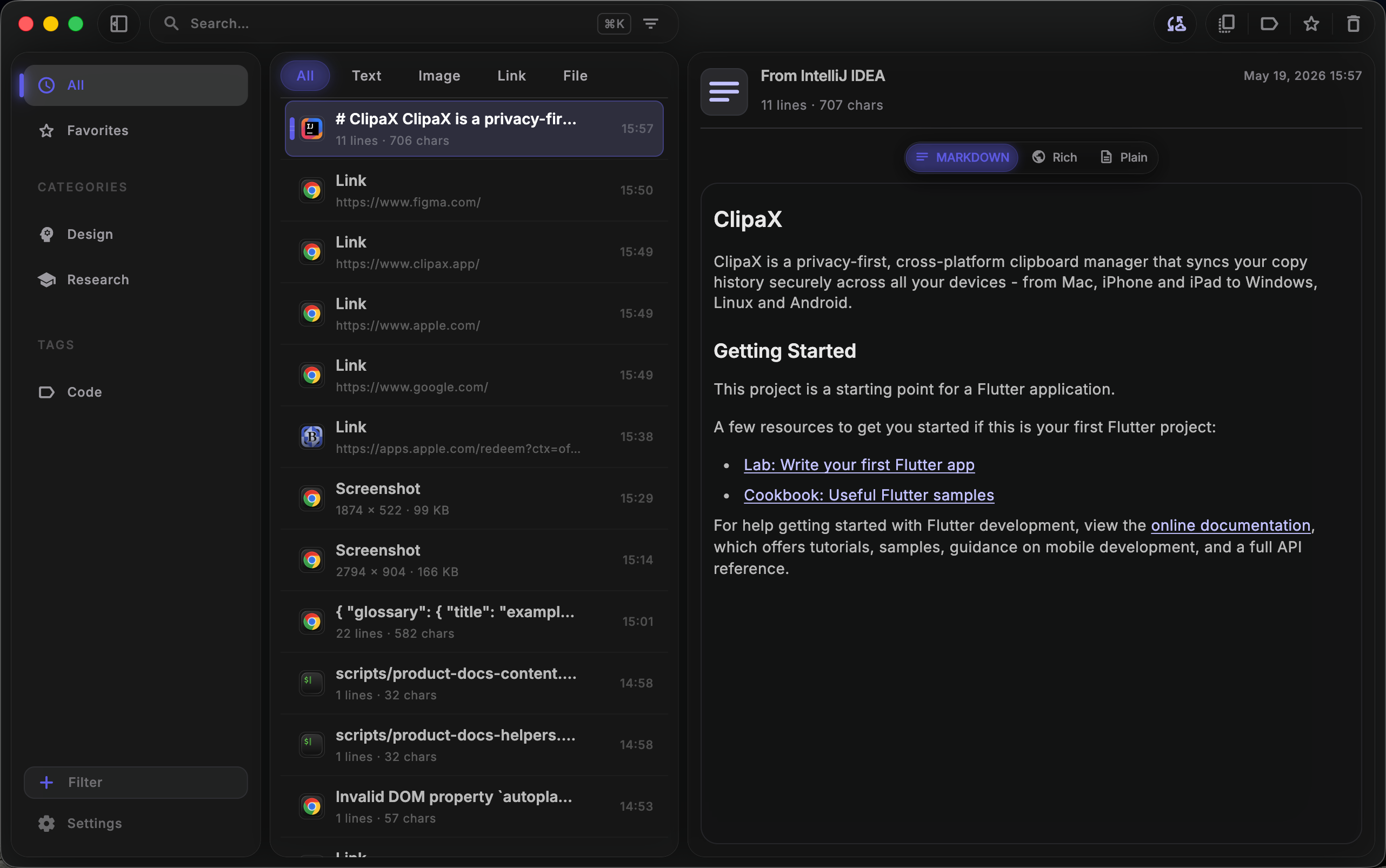
Figure 3 — Smart preview: Markdown rendered in Canvas.
Link and image previews
Links — After copying a URL, Canvas shows the address and an optional link preview card (title, description, thumbnail when available).
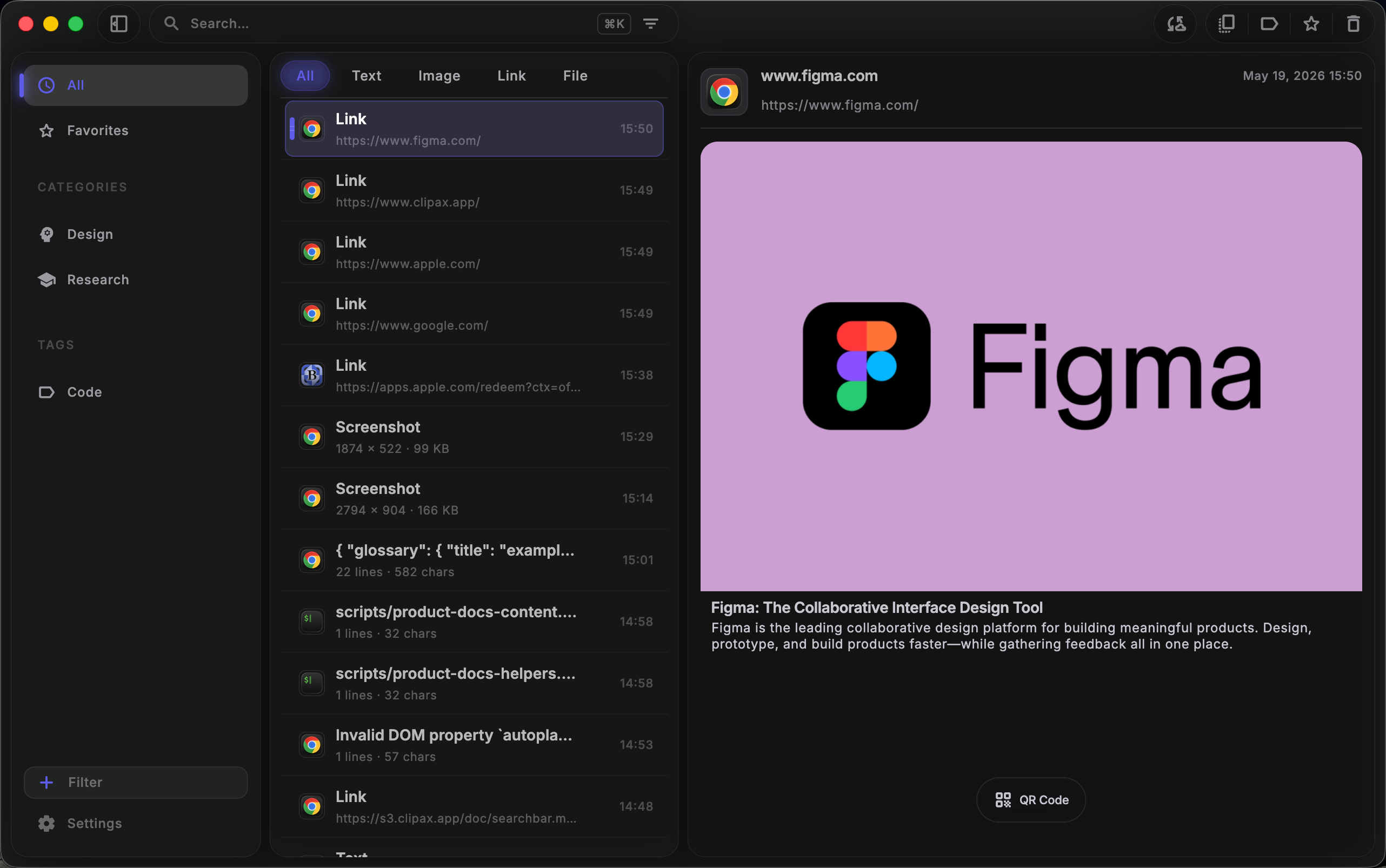
Figure 4 — Link preview card.
Images — Use annotations on the image toolbar (arrow, rectangle, brush, blur). OCR runs automatically in the background on every plan and is searchable in the toolbar; Pro lets you read OCR text in the Text segment. Pro also unlocks advanced annotation in the full image editor.
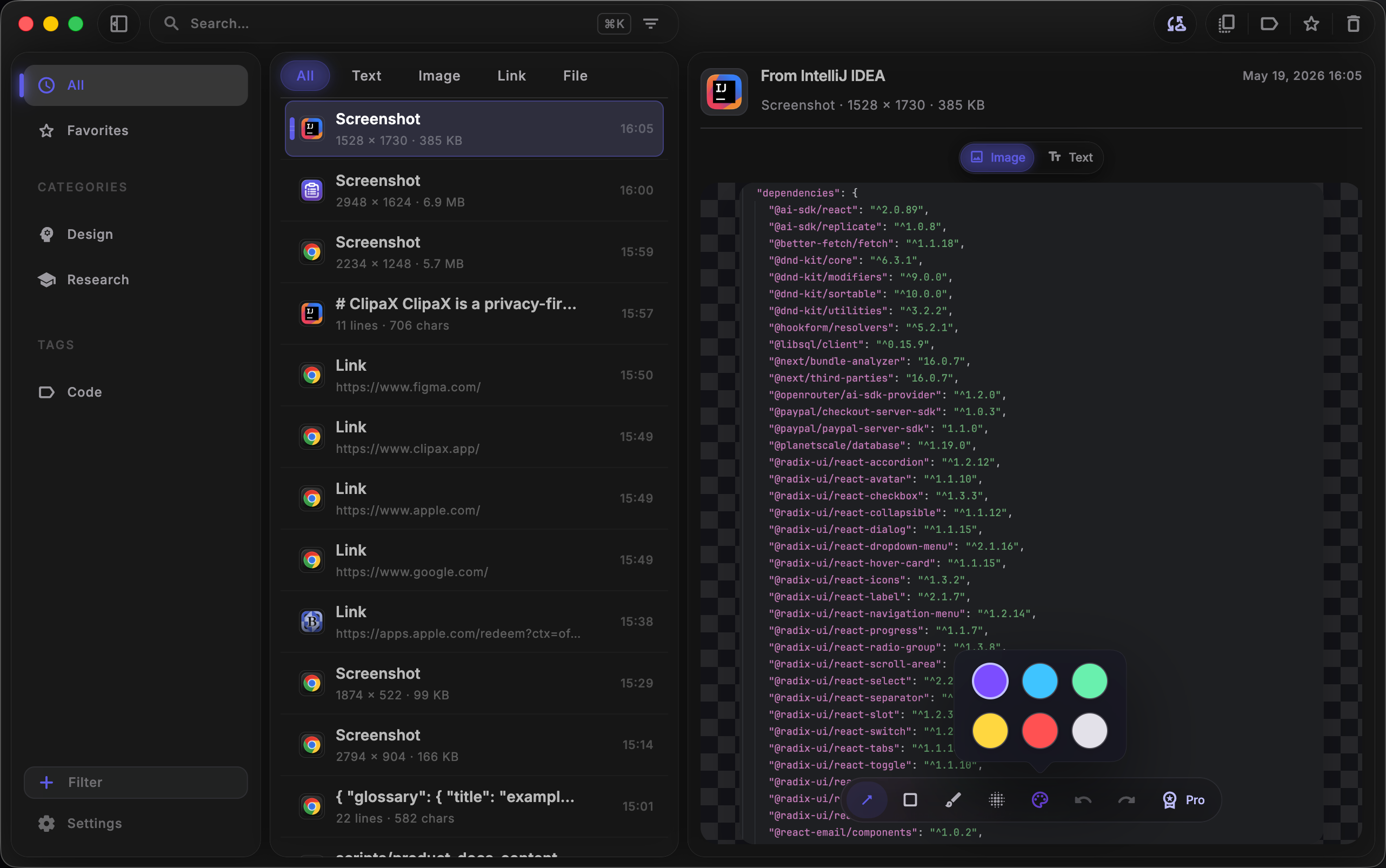
Figure 5 — Image preview, annotations, and OCR text tab.
Mobile layout
On iOS and Android:
- Canvas is full width; swipe back to return to the list.
- Smart preview is available where supported; very large payloads may fall back to Plain text for performance.
- Some Rich HTML layouts are simplified compared to desktop.
Workflow: copy in another app → switch to ClipaX → tap the new row → review in Canvas → Copy → paste elsewhere. See iOS & Android.
Platform notes
| Feature | Desktop | Mobile |
|---|---|---|
| Split list + Canvas | Yes | List OR Canvas (stacked) |
| Rich HTML tab | Usually | Simplified |
| Smart JSON / MD / code | Yes | Yes (device limits apply) |
| Link preview card | Yes | Yes |
| Image annotations | Yes | Yes |
| View OCR text in Canvas | Pro (masked on Free) | Pro (masked on Free) |
| Advanced image annotation | Pro | Pro |
| File properties preview | Pro (masked on Free) | Pro (masked on Free) |
Tips
- If Smart preview looks wrong, switch to Plain to see the raw string, then back to Smart after editing the source app’s copy.
- Long clips: use the search field in history before opening Canvas.
- Pair Canvas with Search & filters to jump to code vs image items quickly.
See also
- Capture & history
- Tags, categories & favorites
- Plans — Pro unlocks full Smart preview, OCR text viewing, advanced image annotation, and file properties preview